Home and Learn: Microsoft Excel Course
Data Forms in Excel
If your spreadsheet is too big to manage, and you constantly have to scroll back and forward just to enter data, then a Data Form could make your life easier. To see what a Data Form is, we'll construct a simple spreadsheet.
But a data form is just a way to quickly enter data into a cell. It is used when the spreadsheet is too big for the screen. To get a clearer idea of what a data form is, try this.
- Enter January in Cell A1 of a new spreadsheet
- From A1 to L1, AutoFill the rest of the months to December
- Now, highlight the columns A1 to L1 (click on the letter A and drag to letter L)
- On the Home tab in Excel, locate the Cells panel
- On the Cells panel, click the Format item. From the Format menu, select Column Width:
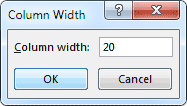
- Enter a value of say 20 for the Column Width, and click OK
- Some of your months should disappear from the spreadsheet
Data Forms are hidden away in Excel, unfortunately. (There is a Forms item on the Insert ribbbon, under Tables. Bu this not a user form.) To find user forms click the File tab in the top left. From the menu on the left, click Options (it's near the bottom).
If you click the Excel Options button, you'll see this dialogue box popping up:
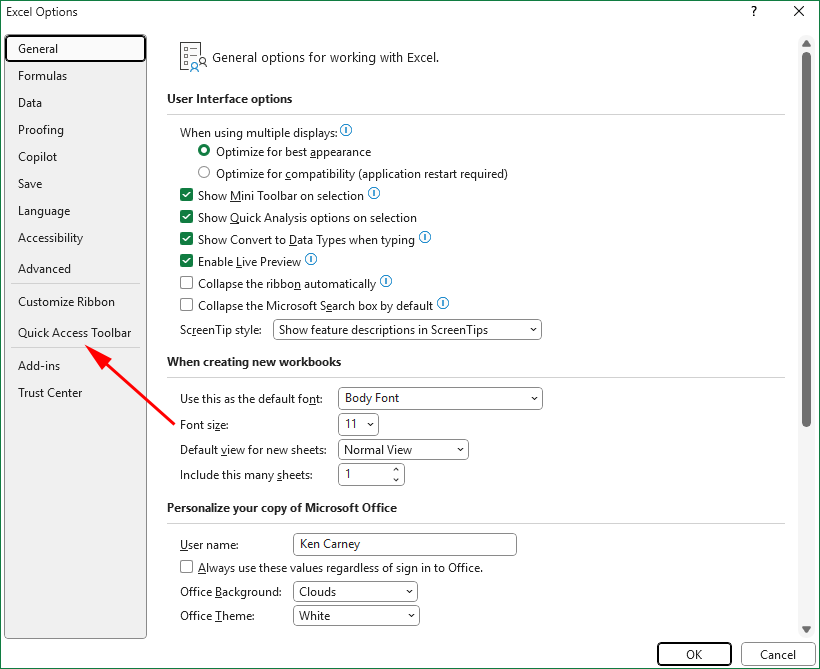
There is a Quick Access Toolbar item on the left. Click on that to see this screen:

The idea is that you can place any items you like on the Quick Access toolbar at the top of Excel. You pick one from the list, and then click the Add button in the middle.
To add the Data Form option to the Quick Access Toolbar, click the drop down list where it says Choose Commands From. You should see this (we've chopped a few options off, in the image below):

Click on Commands Not in the Ribbon. The list box will change:
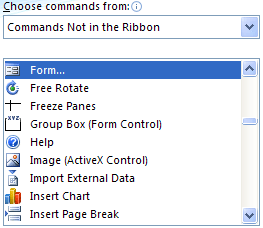
From the Commands Not in the Ribbon list, select Form. Now click the Add button in the Middle. The list box on the right will then look something like this one:
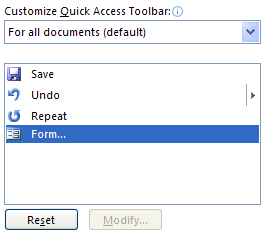
Explore the other items you can add to the Quick Access Toolbar. You might find your favourite in there somewhere!
When you click OK on the Excel Options dialogue box, you'll be returned to Excel. Look at the Quick Access toolbar, and you should see your new item:

Click the Form item you have just added to the Quick Access toolbar:
You should then see this:

All the Columns in the spreadsheet are now showing. Enter numbers for the other months. To start a new row in your spreadsheet, you just click the New button on the right.
In the next part, you'll see how to add drop down lists to an Excel spreadsheet.
<--Back to the Excel Contents Page