Home and Learn: Microsoft Excel Course
How to save your spreadsheet in Excel
Now that your spreadsheet is coming along nicely, you'll want to save your work. To save your spreadsheet, do the following.
Older versions of Excel
If you have an older version of Excel, click the Save icon in the top left of Excel:

(You can also click the File item just below the Save icon.)
You'll then see this screen. (Make sure Save As is selected on the left):

You can see four items: OneDrive, This PC, Add a Place, and Browse. The default is to save your work on your own computer (This PC), in the My Documents folder:

If you're happy to save your work in the My Documents folder, then type a name in the text box that says "Enter file name here". Click the Save button to the right and your file will saved as a XLSX spreadsheet.
If you don't want to save your spreadsheet in the My Documents folder, click the More Options link. You'll then see a Save As dialogue box. You can also click the blue arrow, just to the left of My Documents in the image above. You'll then see this:

Navigate to an area on your computer by clicking an item on the list. When you're happy with your chosen location, click the Save button.
Excel Office 365
If you have a newer Office 365 version of Excel, clicking the Save icon at the top might launch this dialogue box, if you haven't already saved your work:
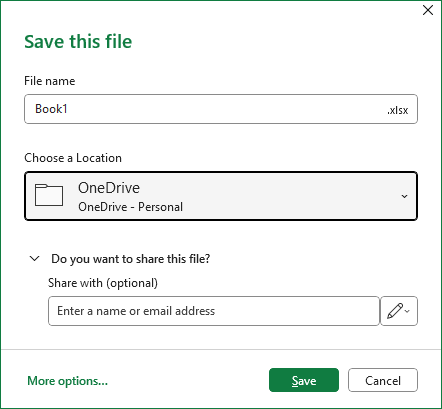
Type a name for your workbook in the File Name box at the top.
The default location to save things is usually in the One Drive folder. (This is a folder in the Microsoft Cloud that you get for free. You can then access the file anywhere. If your One Drive folder is full, Microsoft asks if you want to pay for more space.) But click the dropdown box to see more options:
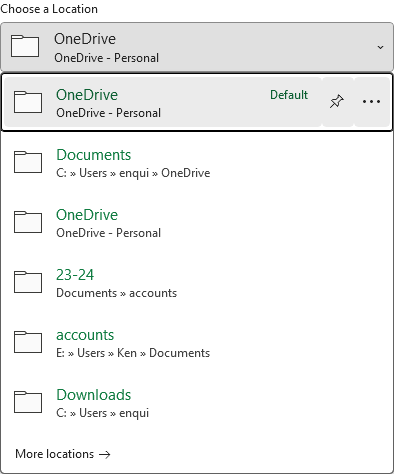
If you want to choose a different location on your computer to save your work, click the More Options link at the bottom. You'll then see a similar screen as for older Excel versions above.
Once you're happy with your save location, click the Save button at the bottom.
All Excel Users
If you click the dropdown list, where it says Excel Workbook (*.xlsx), you will see that you can save your workbook in lots of different formats:
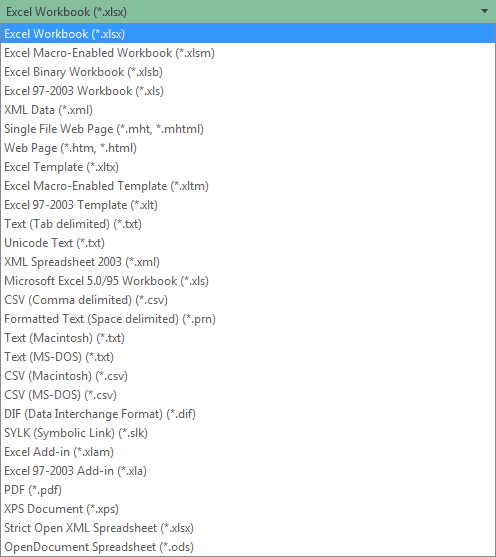
Remember to save you work on a regular basis. (Just click the Save icon in the toolbar at the top of Excel. Or press CTRL + S on your keyboard.)
In the next part of this Excel course, you'll learn about currency options.
<--Back to the Excel Contents Page