Home and Learn: Microsoft Excel Course
A First Look at Microsoft Excel
In the first part of our Excel tutorials, we'll explain what you will see when the programme first starts. We're not going to explain what a spreadsheet is, and assume that you already know. If you don't, we have an introduction here:
Launch your Excel software. When the programme starts, you'll see something like this in older versions of Excel:
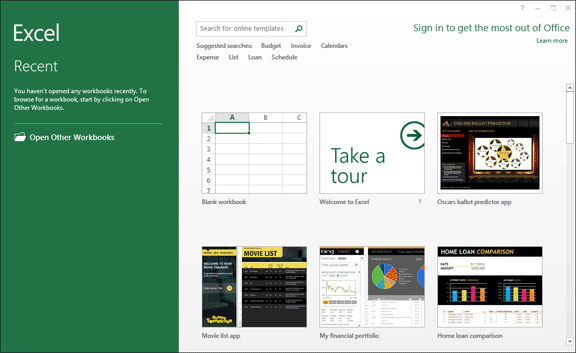
To create a new spreadsheet in Excel 2013 to 2016, click one of the templates. For this course, we'll be using the Blank Workbook temple. Click on that option from the list available. You'll be taken to the main spreadsheet area.
In the latest versions of Excel, you'll see a screen like this:
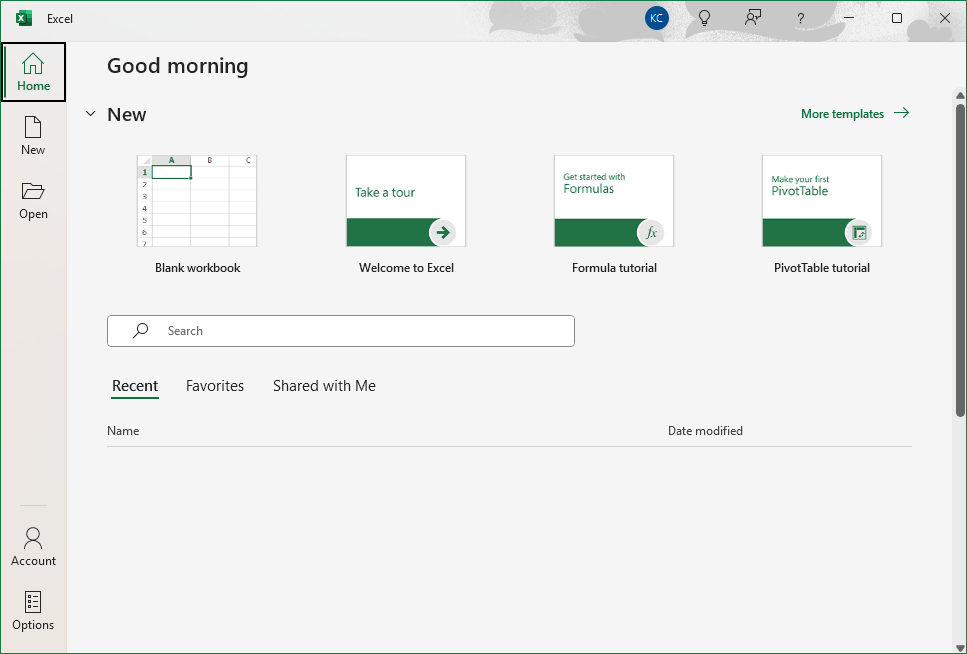
Once you create some spreadsheets, you'll see them added to the area at the bottom, under Name and Date Modified. You can can then click the name of your spreadsheet to open it up.
Again, though, click on Blank Workbook.
You'll see a fresh spreadsheet open up. It should look like this:
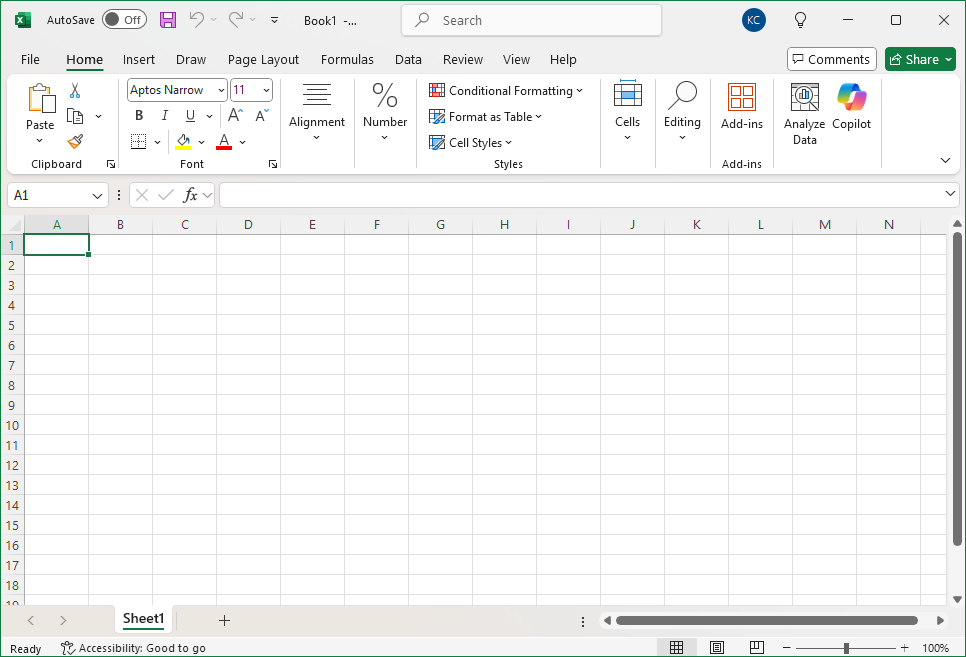
The first thing to notice is the Ribbon running right across the top. The Ribbon is supposed to be more intuitive than drop-down menus. Emphasis is placed on the tools and options appropriate to what you're doing.
Notice that in all versions the Home tab is the one that is selected when you open a spreadsheet. Other ribbons are: Insert, Draw, Page Layout, Formulas, Data, Review and View, Help. (Don't worry if you don't have a Draw ribbon.)
If you want to save your work, or do things like printing, click on the File menu at the top, You'll be taken to the opening area again, this time with more options:
Here the screen in older versions of Excel:

And here's the latest version:
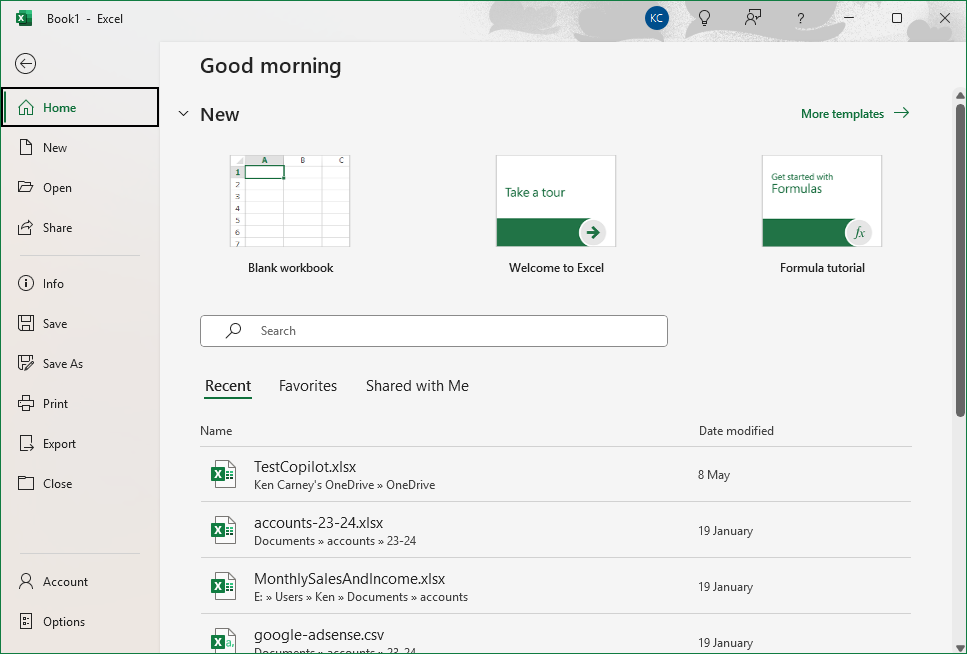
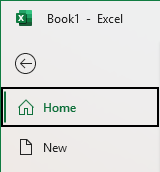
To get back to your spreadsheet, click the left-pointing arrow in the top left:

We'll go through all these menu options later, along with the various options on the Ribbon tabs. But the best place to start with Excel is getting to grips with all those numbers and letters. These are the Grid Coordinates. We'll do that in the next part.
Move on to Rows and Columns -->
<--Back to the Excel Contents Page